Convert PowerPoint slides into clean lecture notes.
StudyKit transforms PPTX decks into sectioned notes with bullets, recaps, and easy exports.

Three steps, clear outcomes.
Upload PPTX
Drop your slide deck into StudyKit.
Generate notes
We group slide text by topic.
Export and review
Download Markdown or PDF notes.
Visual-first study workflows.
Slide-by-slide clarity
Notes stay aligned to your deck so you can follow the lecture flow.
Generate notes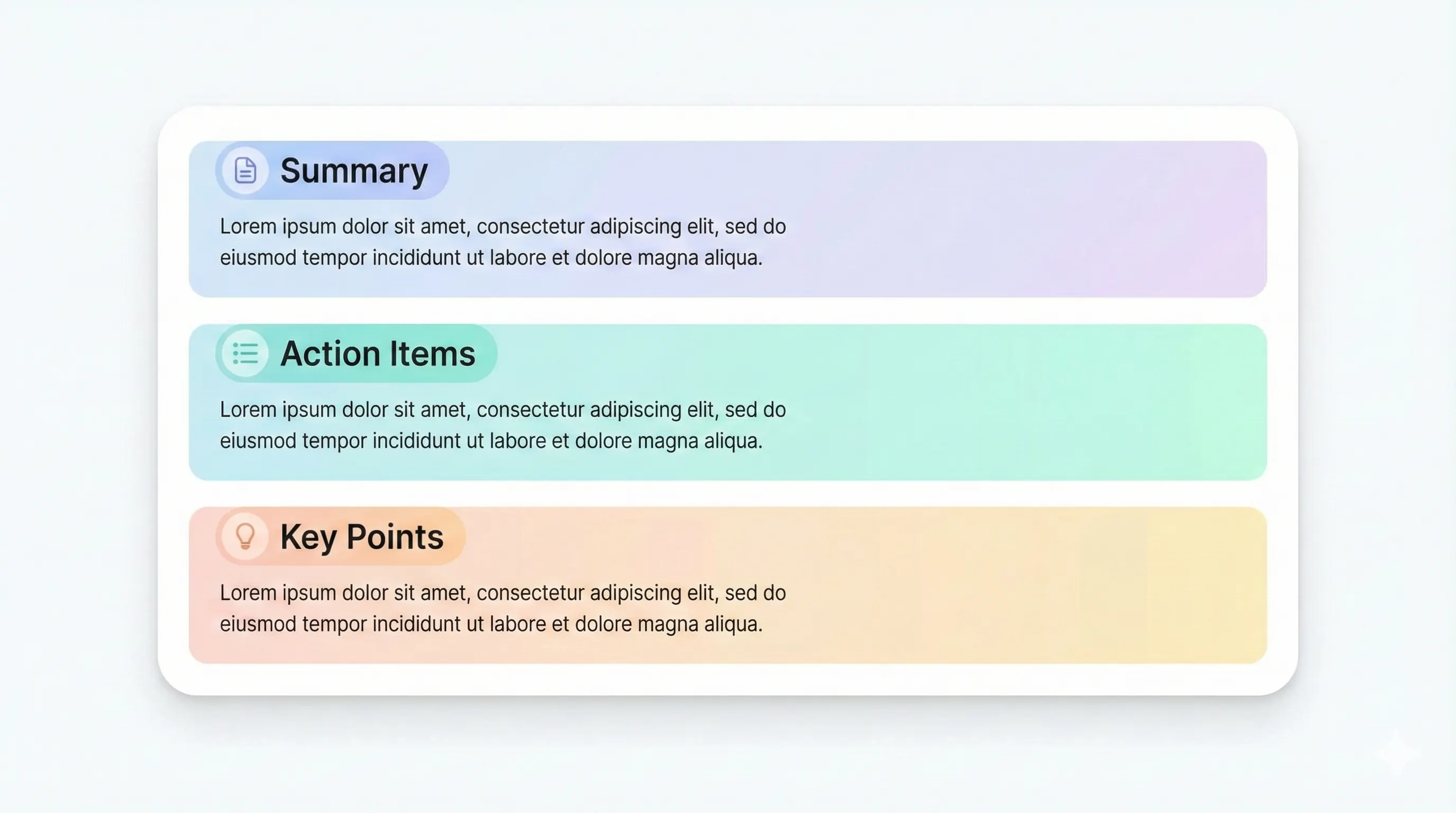
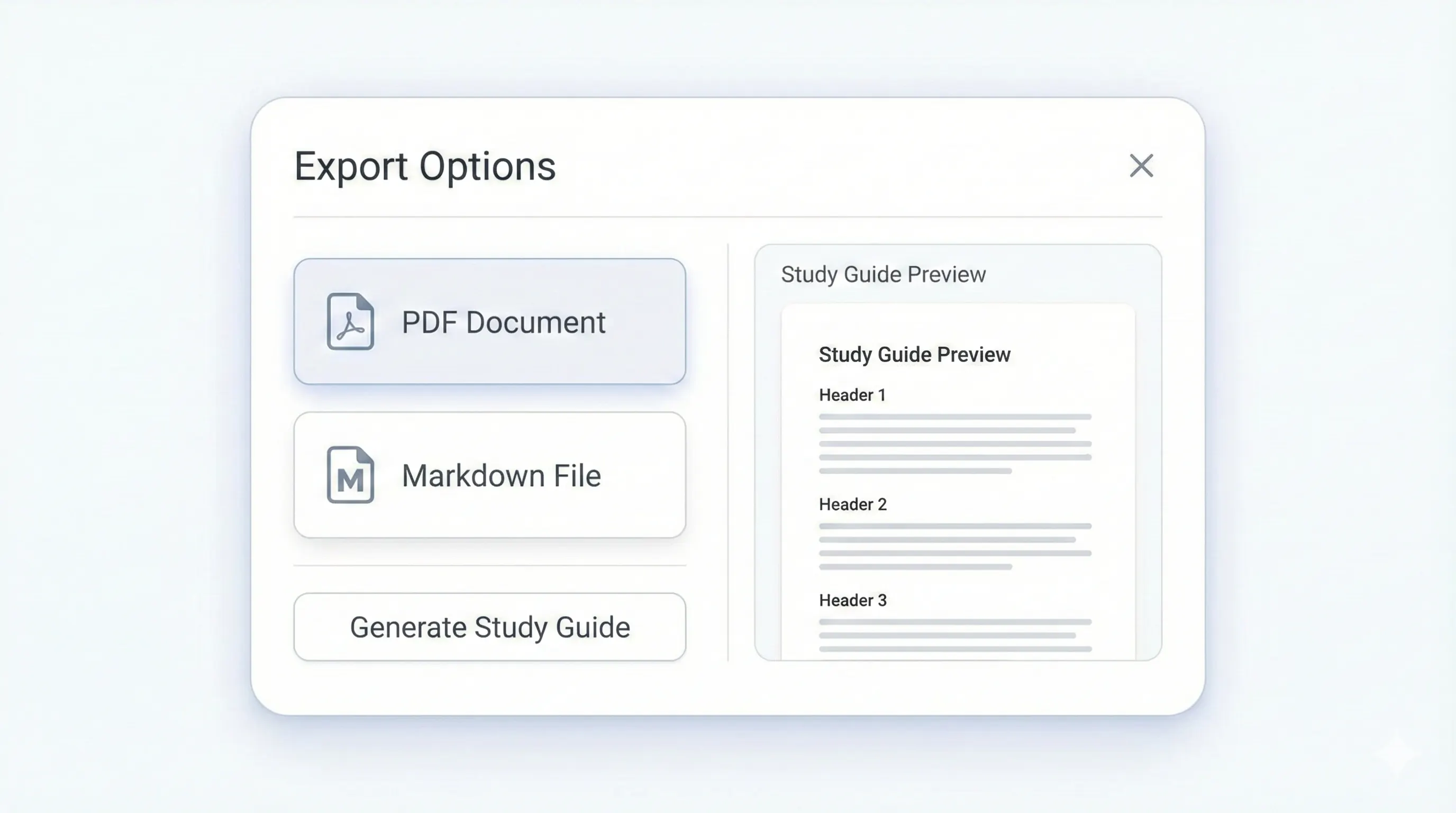
Your study kit, ready to export.
Each output is structured for quick review: headings, terms, and practice questions.
Compare plansHeadings and bullets for each topic.
Stay aligned with lecture flow.
Short summaries for each section.
Generate recall prompts from notes.
PowerPoint decks are designed for presentation, not note-taking. StudyKit converts PowerPoint to notes by extracting slide text and organizing it into headings and bullet summaries. The result is a clean, linear set of lecture notes that follow your slides without the clutter of screenshots or manual formatting. Upload a PPTX file and get notes that highlight the main concepts, supporting details, and the overall flow of the lecture.
This PowerPoint-to-notes workflow is especially useful when you are studying from multiple decks. Instead of scanning each slide, you get a single notes document that preserves the order of the lecture. Notes are grouped by topic, with bullets that capture definitions, examples, and takeaways. You can then skim sections quickly or expand into flashcards and quizzes for active recall.
StudyKit’s MVP supports text-based PPTX and PDF slides. If your deck includes charts or images, the notes will still focus on the slide text, which is often enough to capture the essential points. For image-only slides, you will see a warning so you do not waste time. OCR for scanned slides is on the roadmap, but most exported slides already contain selectable text.
Export options keep your workflow flexible. Markdown works well for Notion, Obsidian, or Google Docs, while PDF export on Basic and Pro gives you a printable notes packet. From the same upload, you can also generate a study guide or flashcards when you need a different review style. This gives you both passive notes and active practice without duplicating work.
If you need clean lecture notes from PowerPoint, StudyKit delivers a structured output that is faster and easier to review than raw slides. It is built for students who want clarity, not more formatting tasks.
Preview a sample output in seconds.
No upload needed. Explore a pre-filled document and see the study guide structure instantly.
Quick answers.
Yes. Upload PPTX files directly or export your deck to PDF.
Yes. Notes follow the slide order and key headings.
Yes. You can switch from notes to a study guide with the same document.
Free exports to Markdown. Basic and Pro include PDF export.
You can preview a sample without signing in. Uploads require an account.
Image-only slides need OCR, which is planned for Phase 2.